
Otodoke | Delivery Date & Time
Let customers choose a delivery
date and time in the cart.
A Shopify app that adds a delivery date and time slot picker to the cart. Available dates are narrowed down automatically from your preparation days, cutoff time, and closed days, and orders with dates you can't deliver on can be stopped at checkout. No theme code changes.
The Basic plan is $3.99/month. Try it free for 14 days.

Problem
Common problems with
delivery dates
Common problem

Customers write their preferred date in the order note,
in all kinds of formats, and checking them takes time…
Common problem

Customers pick closed days or dates you can't make,
and you have to contact them again…
Common problem

Your theme opens the cart as a side drawer,
so there's no place to choose a date…
Otodoke
solves them.
Only dates you can deliver on appear in the cart, and the chosen date and time are saved on the order. Orders with dates you can't deliver on can be stopped at checkout.
Features
What Otodoke can do
-
01
Choose a delivery date and time slot in the cart
Show the picker on the cart page and in the cart drawer. Dates can be chosen from a dropdown or a calendar, and the choice is saved under "Additional details" on the order.

-
02
Available dates are calculated automatically
Available dates follow your preparation days, transit days, same-day cutoff time, shipping holidays, and non-delivery days. You can also import public holidays and add long holidays as a date range.

-
03
Four selection types
Choose from date and time, date only, day of the week only, or time only. Add time slots from a carrier preset with one click, then add or reorder them freely.

-
04
Checkout validates the date again
Make the delivery date required, or stop dates you can't deliver on, such as dates before the earliest delivery date. You decide in the settings whether to block or allow them.
-
05
Different lead times by product or prefecture
Set preparation days by product tag, products that can't have a delivery date, and transit days by the customer's prefecture.
-
06
Shown after purchase and in emails
Show the chosen date and time on the thank you page, the order status page, and in the order confirmation email.
-
07
No theme code changes
Open the theme editor from a button in the app, add the picker, and save. The picker follows your store's language (Japanese or English), and you can change its headings and messages for each language.

-
08
Plus plan
On Shopify Plus, choose in checkout too
Show a delivery date field under the shipping methods in checkout, so customers who skip the cart can still choose a date (Shopify Plus stores only).


Demo
Try it in
the demo store
Add a product to the cart and choose a delivery date and time slot.
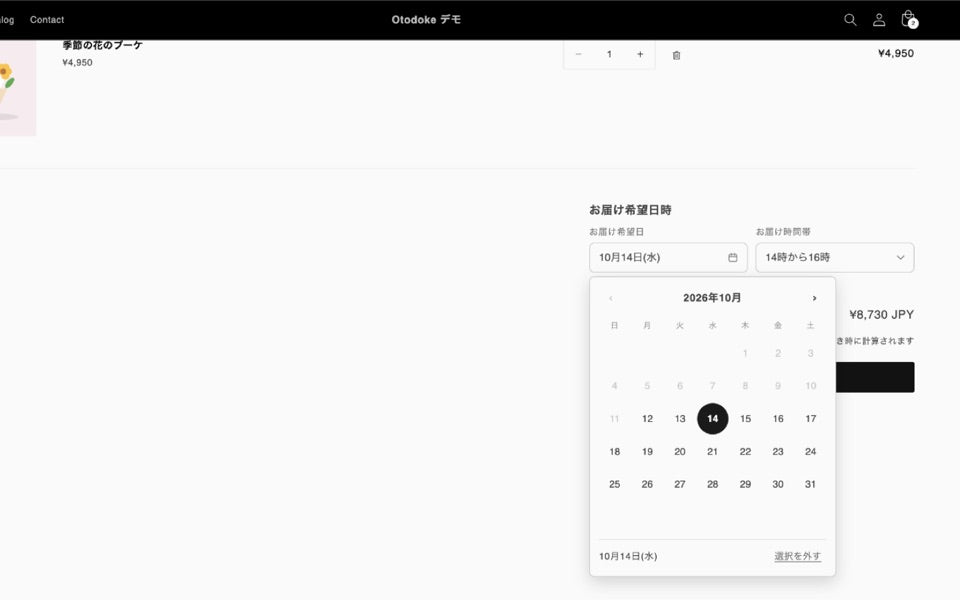
Choose a date in the cart
Gift shop
Add a product to the cart and the cart page shows the delivery date and time slot picker. Dates you can't choose are grayed out in the calendar.
- Pick the date from a calendar
- Time slots follow the carrier's slots (morning, 2 pm - 4 pm, and so on)
- The chosen date and time are saved under "Additional details" on the order
Demo store password
This is a test store. No products are actually sold.
Flow
Getting started
Install from the App Store
Install from the Shopify App Store and choose a plan. Try it free for 14 days.
Set your delivery rules
Enter your preparation days, cutoff time, closed days, and time slots, then save. Saving also turns on validation at checkout.
Add the picker to the cart
Open the theme editor from the button on the app's home page, place the picker above the checkout button, and save. It then appears in your store.
Pricing
Pricing
Charges are included in your Shopify bill.
Basic
$39.90/year · 14-day free trial
- Works on Shopify Plus stores too
- Delivery date picker on the cart page and in the cart drawer
- Selection types (date and time, date only, day of the week only, time only)
- Preparation days, cutoff time, shipping holidays, non-delivery days, holiday import
- Lead times by product tag and by prefecture
- Checkout validation (require a date, stop dates you can't deliver on)
- Shown on the thank you page, order status page, and notification emails
Plus (Shopify Plus only)
$149.90/year · 14-day free trial
- For Shopify Plus stores that want customers to choose the date in checkout
- Everything in the Basic plan
- Delivery date field under the shipping methods in checkout
- Customers who skip the cart can still choose a date in checkout
Prices are in US dollars and exclude tax. Shopify Plus stores can use the Basic plan as is (customers choose the date in the cart). You only need the Plus plan if you want customers to choose the date inside the checkout. On development stores, you can try all plan features for free.
Start with a 14-day free trial. You can change plans later.
Install from the App StoreOpens in a new window.Developer
Otodoke is developed by Craftify,
a Shopify agency.
We build and run Shopify stores. We can also help adjust your theme for Otodoke or talk about your store as a whole.
FAQ